We may earn a commission from purchases made through our affiliate links at no extra cost to you. This helps us keep creating free content for artists like you. Full disclosure.
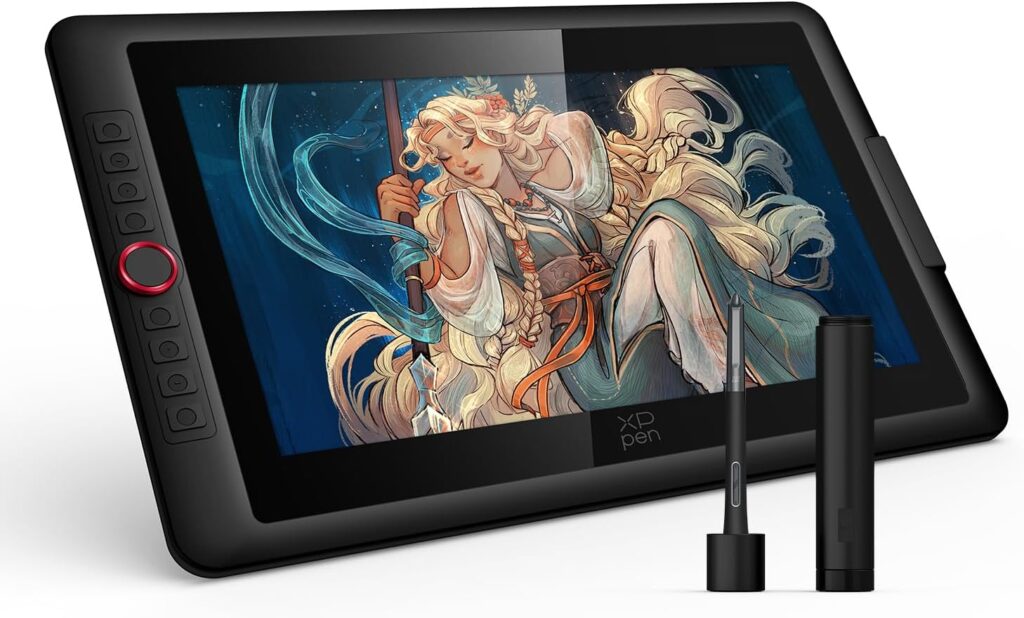
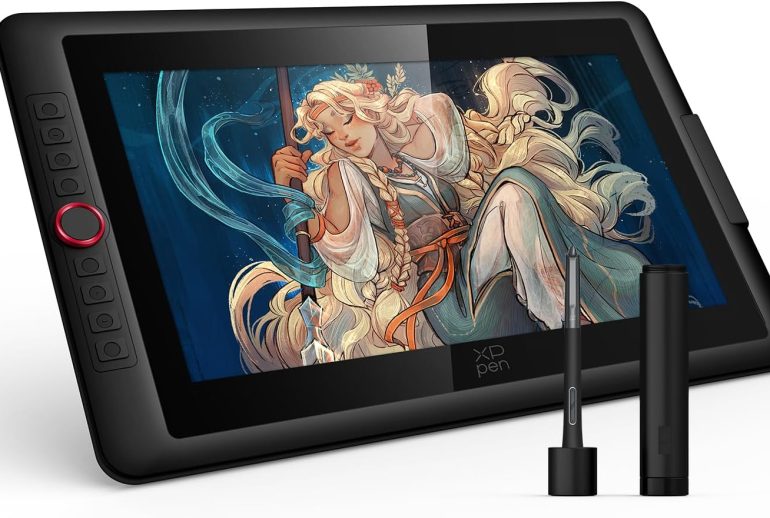
If you’re looking for a pen display that delivers pro-level features without the Wacom price tag, the XPPen Artist 15.6 Pro V2 deserves your attention. We spent several weeks testing this tablet across Photoshop, Clip Studio Paint, and Krita, and it consistently impressed us with its pen accuracy, color reproduction, and build quality. At $289.99 (down from $399.99), it hits a sweet spot for serious hobbyists and working artists who want a screen tablet without breaking the bank.
In this review, we break down everything you need to know – display quality, pen performance, shortcut keys, software compatibility, and who this tablet is actually built for.
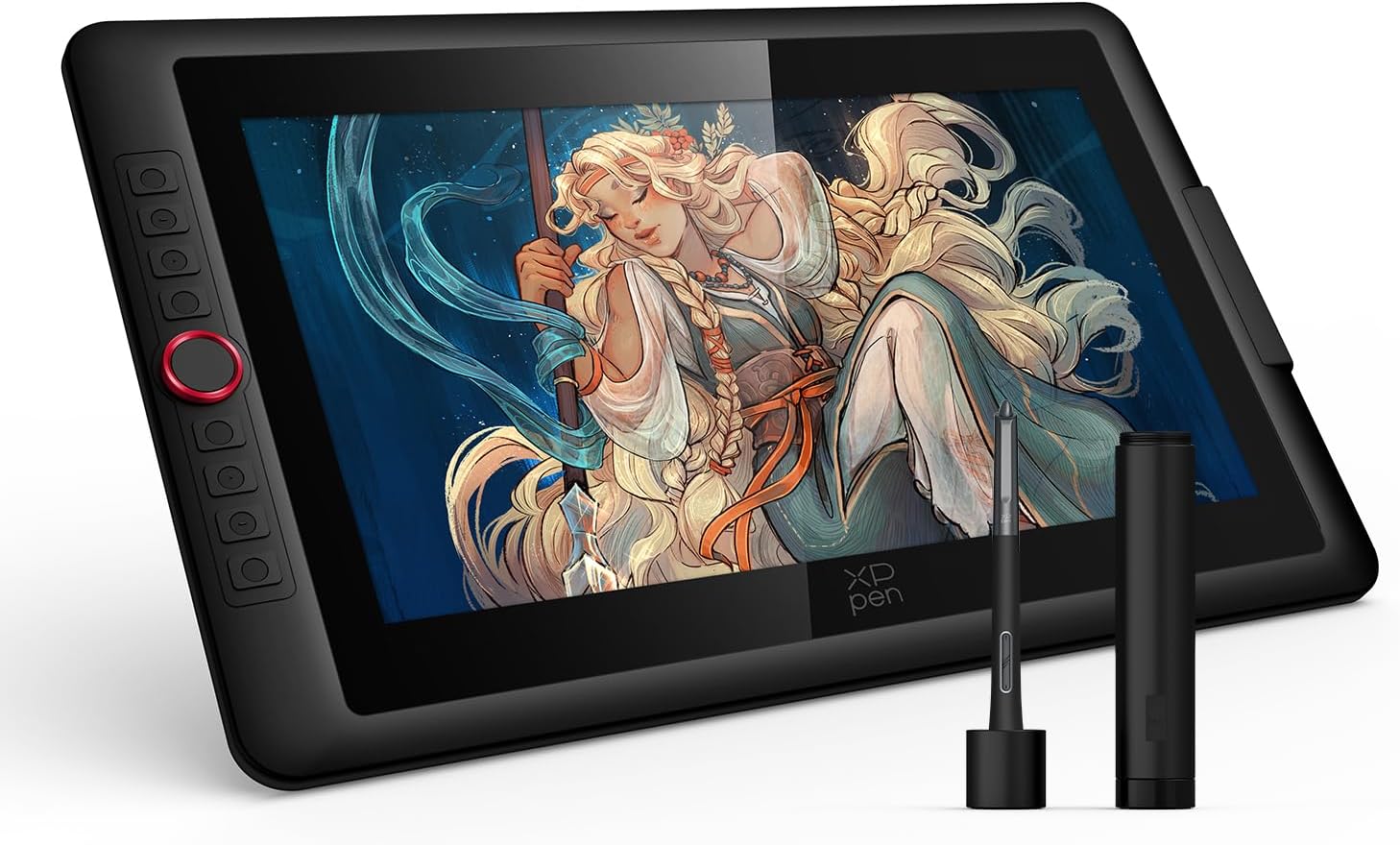
XPPen Artist 15.6 Pro V2
Price: $289.99 (List: $399.99)
Rating: 4.3/5 (12,000+ reviews)
- 15.6-inch full-laminated anti-glare display
- X3 Pro stylus with 16,384 pressure levels
- 99% sRGB, 96% Adobe RGB color accuracy
- 8 shortcut keys + Red Dial controller
- Compatible with PC, Mac, Linux, Android
Who Is the XPPen Artist 15.6 Pro V2 For?
This tablet fits a wide range of artists, but it really shines for a few specific groups:
- Intermediate digital artists who have outgrown a screenless tablet and want direct pen-to-screen drawing
- Illustrators and concept artists who need accurate color and pressure sensitivity for detailed work
- Students and hobbyists looking for a capable pen display under $300
- Animators who need responsive pen tracking and customizable shortcuts
- Linux and Android users who need cross-platform compatibility (something many competitors skip)
If you’re a professional doing print work that demands absolute color perfection, you may want to consider a higher-end display. But for digital illustration, comics, animation, and general art, this tablet delivers more than enough.
Display and Screen Quality
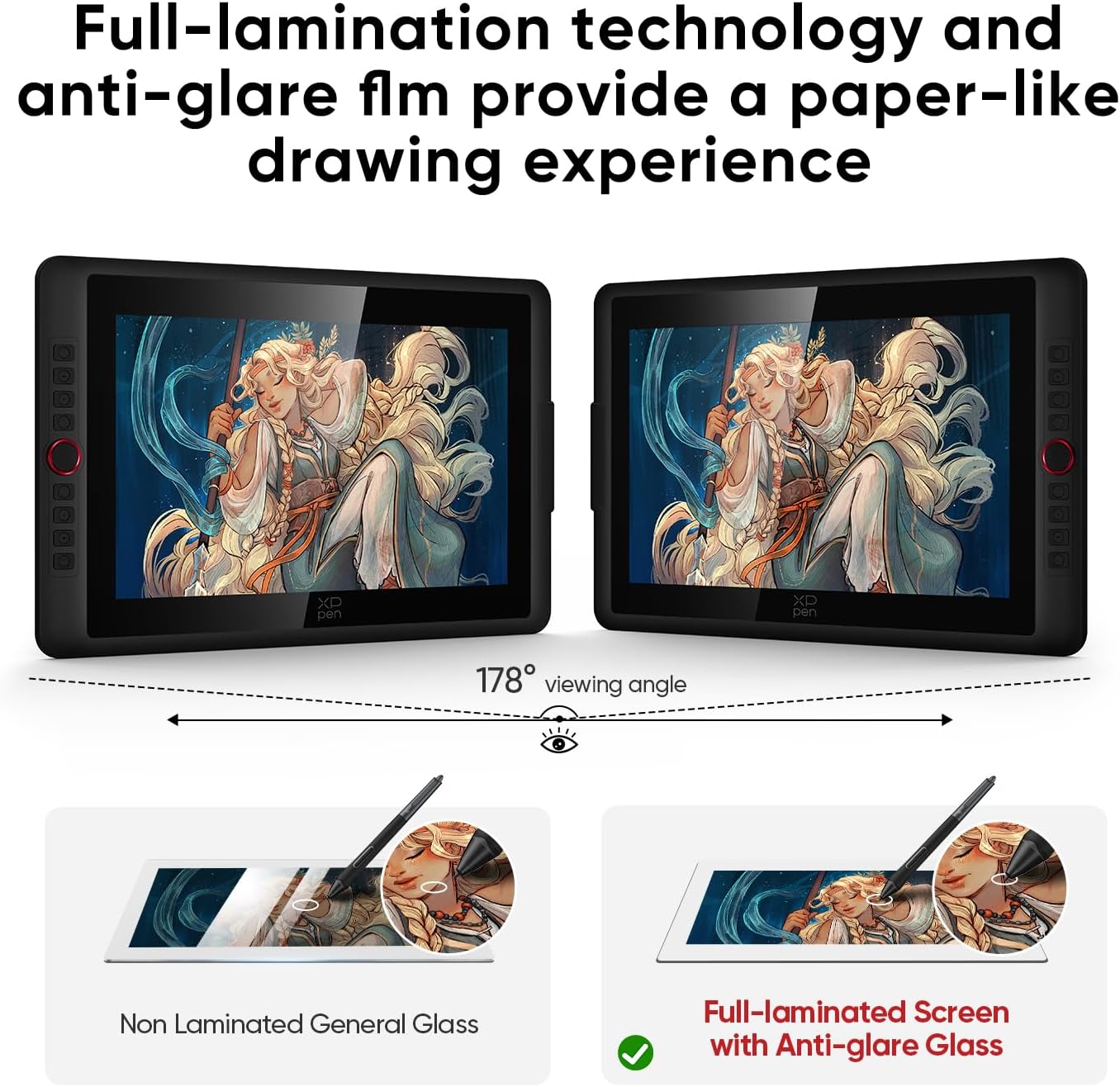
The 15.6-inch IPS display is one of the strongest selling points here. XPPen uses full lamination technology, which bonds the glass directly to the screen panel. This eliminates the air gap you find on cheaper tablets, reducing parallax (that annoying offset between where your pen tip touches and where the cursor appears).
Anti-Glare Etched Glass
The etched glass surface gives the screen a slight paper-like texture. It cuts down on reflections from overhead lighting without making the display look hazy. We tested it under both natural window light and direct desk lamps, and glare was never an issue.
Color Performance
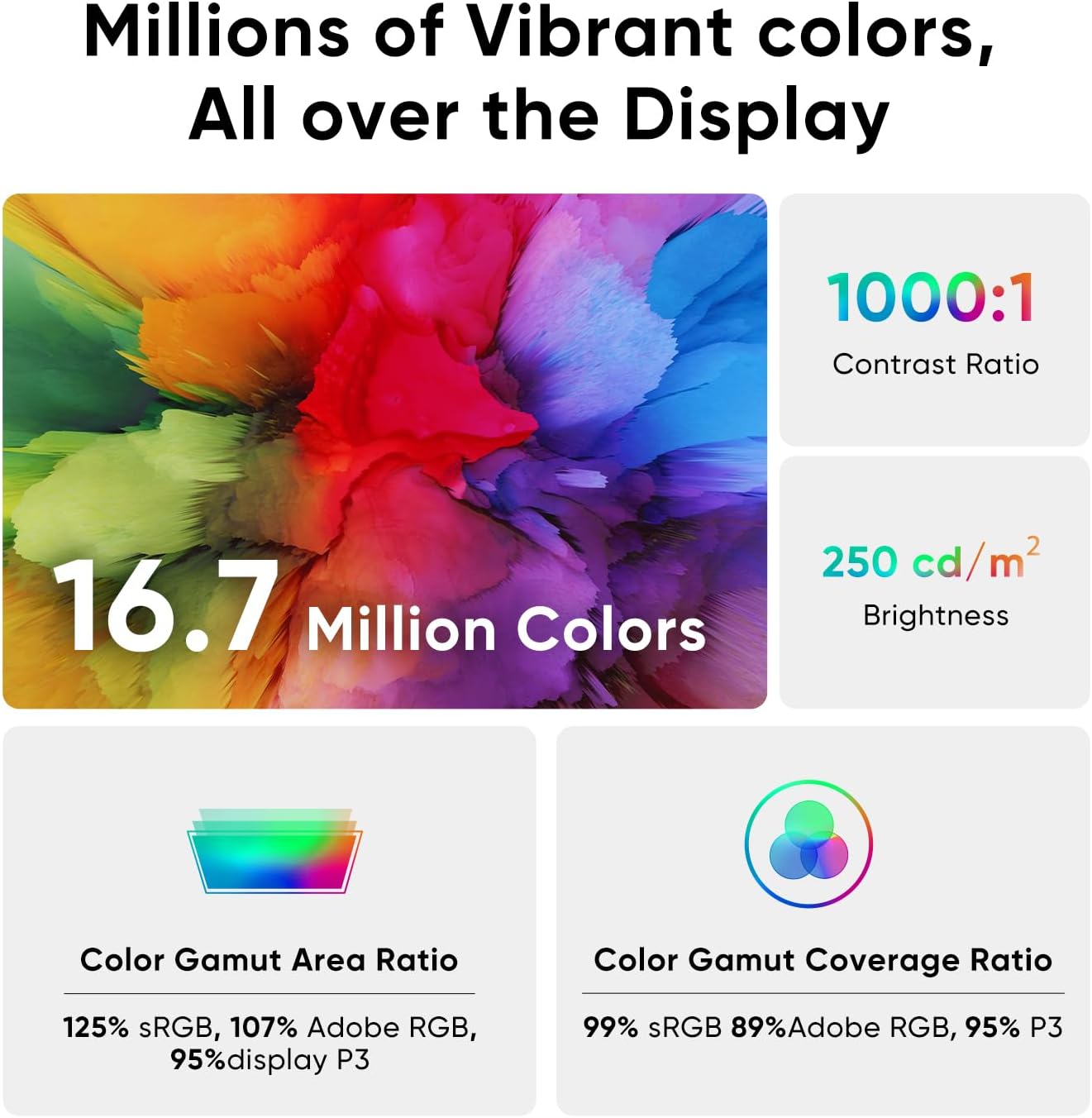
XPPen rates this display at 99% sRGB, 96% Adobe RGB, and 96% Display P3. In practice, colors looked vibrant and accurate right out of the box. Skin tones rendered naturally, gradients transitioned smoothly, and we didn’t notice any significant banding in darker areas. The 16.7 million color depth ensures smooth transitions between shades.
Brightness tops out at 250 cd/m2 with a 1000:1 contrast ratio. That’s plenty for indoor use. We wouldn’t recommend using it outdoors in direct sunlight, but that’s not really what a pen display is designed for.
The 178-degree viewing angle means colors stay consistent even when you’re looking at the screen from the side – useful when you have the tablet angled on the included stand. If you’re working on illustrations or portraits, you’ll appreciate how accurate the skin tones and subtle color shifts appear.
Pen Performance – X3 Pro Smart Chip Stylus
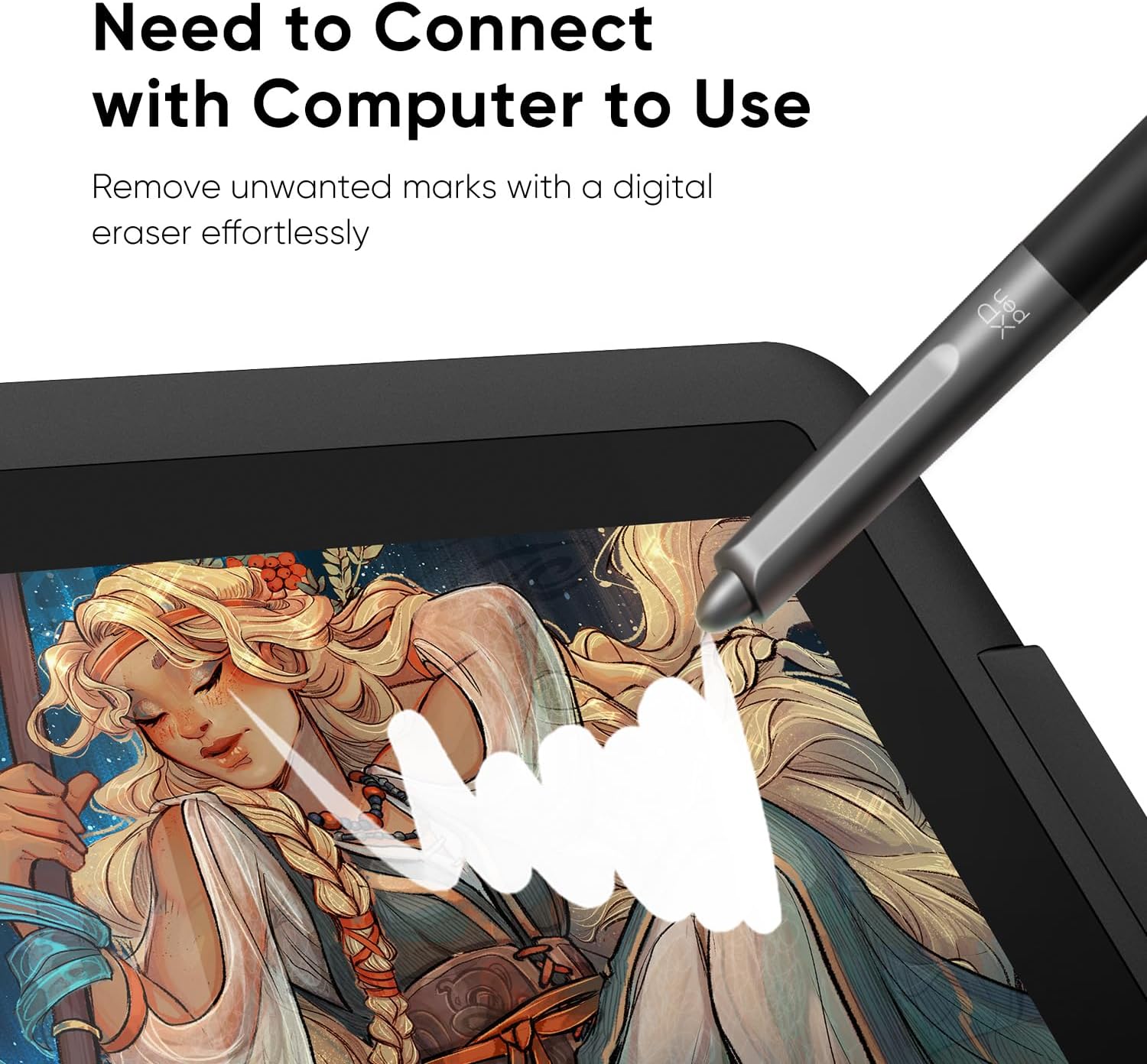
The X3 Pro stylus is where this tablet really separates itself from the competition. It features 16,384 pressure levels – that’s double what most tablets offer (including many Wacom models that still use 8,192 levels).
What 16K Pressure Actually Means
More pressure levels means finer control over line weight and opacity. When we tested thin hatching lines in Clip Studio Paint, the difference was noticeable. Transitioning from a whisper-light stroke to a bold line felt natural and continuous, without the stepping effect you sometimes get on lower-pressure pens.
Tilt Support
The stylus supports 60 degrees of tilt recognition. This matters for shading with pencil or airbrush tools – tilt the pen to get wider, softer strokes just like you would with a real pencil. It responded accurately in our testing across Photoshop and Krita.
Battery-Free Design
The pen is battery-free and uses electromagnetic resonance, so you never have to charge it. It’s lightweight (about 12g) with a comfortable grip that doesn’t cause fatigue during long sessions. If you’re used to the feel of a Wacom pen, the X3 Pro is comparable in weight and balance.
Red Dial Controller and Shortcut Keys
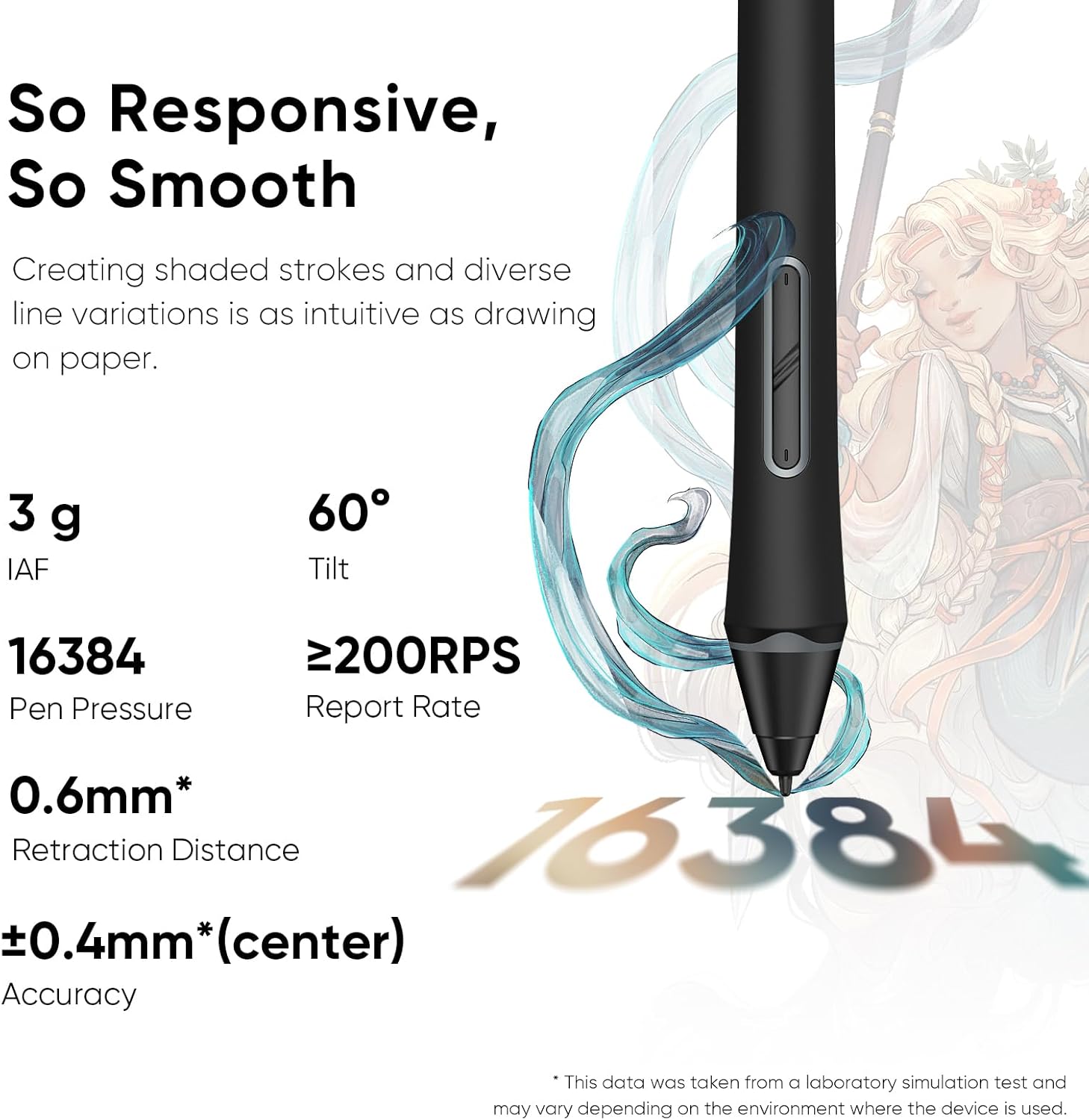
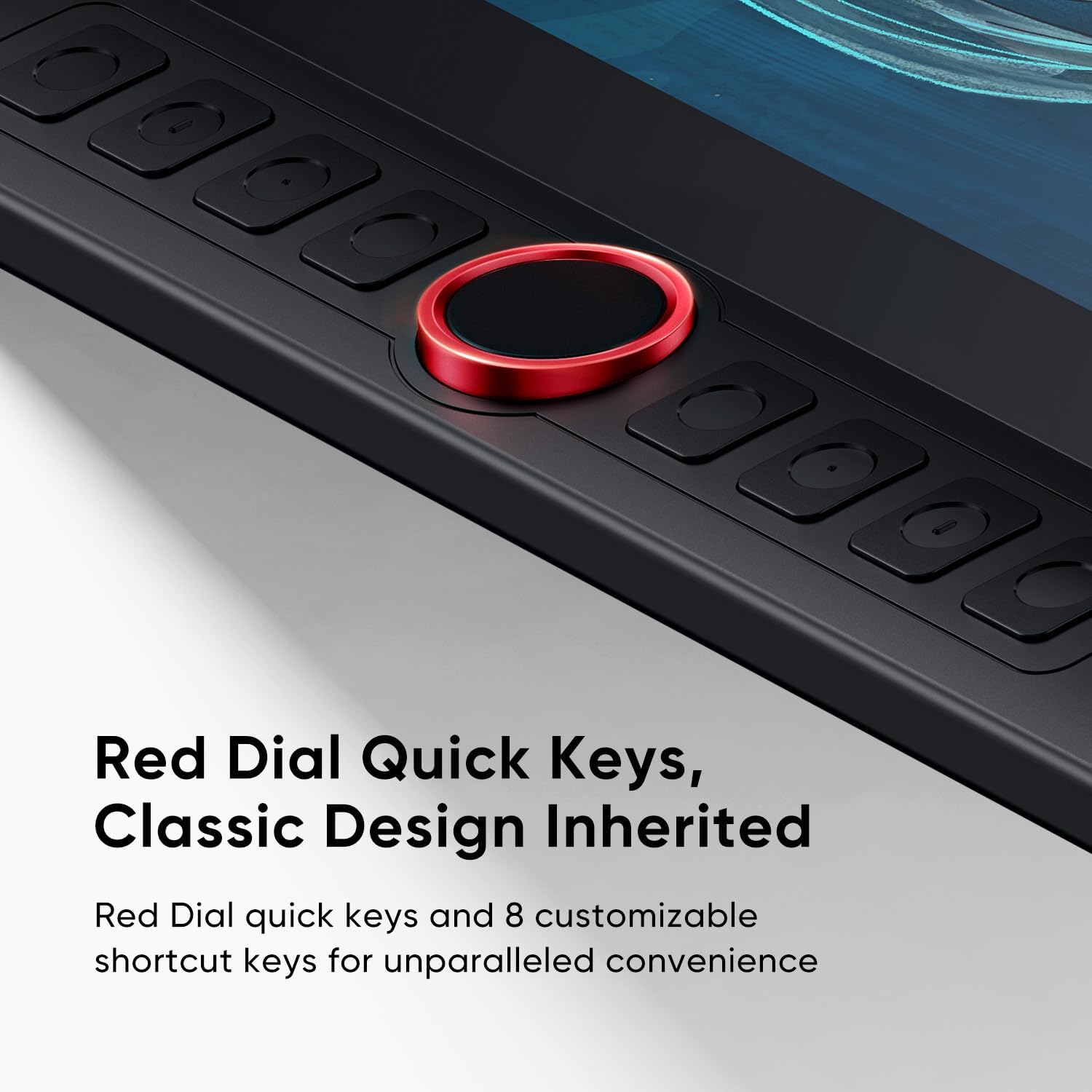
The physical Red Dial is a standout feature at this price point. It sits on the tablet frame and works as a rotary controller that you can assign to brush size, canvas zoom, canvas rotation, or scroll. Spin it with your non-drawing hand to resize your brush on the fly without touching the keyboard.
Alongside the dial, there are 8 customizable shortcut keys. You can program each one through XPPen’s driver software to match your workflow. We set ours to undo, redo, brush, eraser, zoom in, zoom out, save, and color picker. Having these on the tablet frame means less reaching for the keyboard, which is exactly what you want when you’re in a creative flow.
If you’re considering a standalone drawing tablet but want the shortcut functionality that comes with a connected display, this setup gives you the best of both worlds.
Design and Build Quality
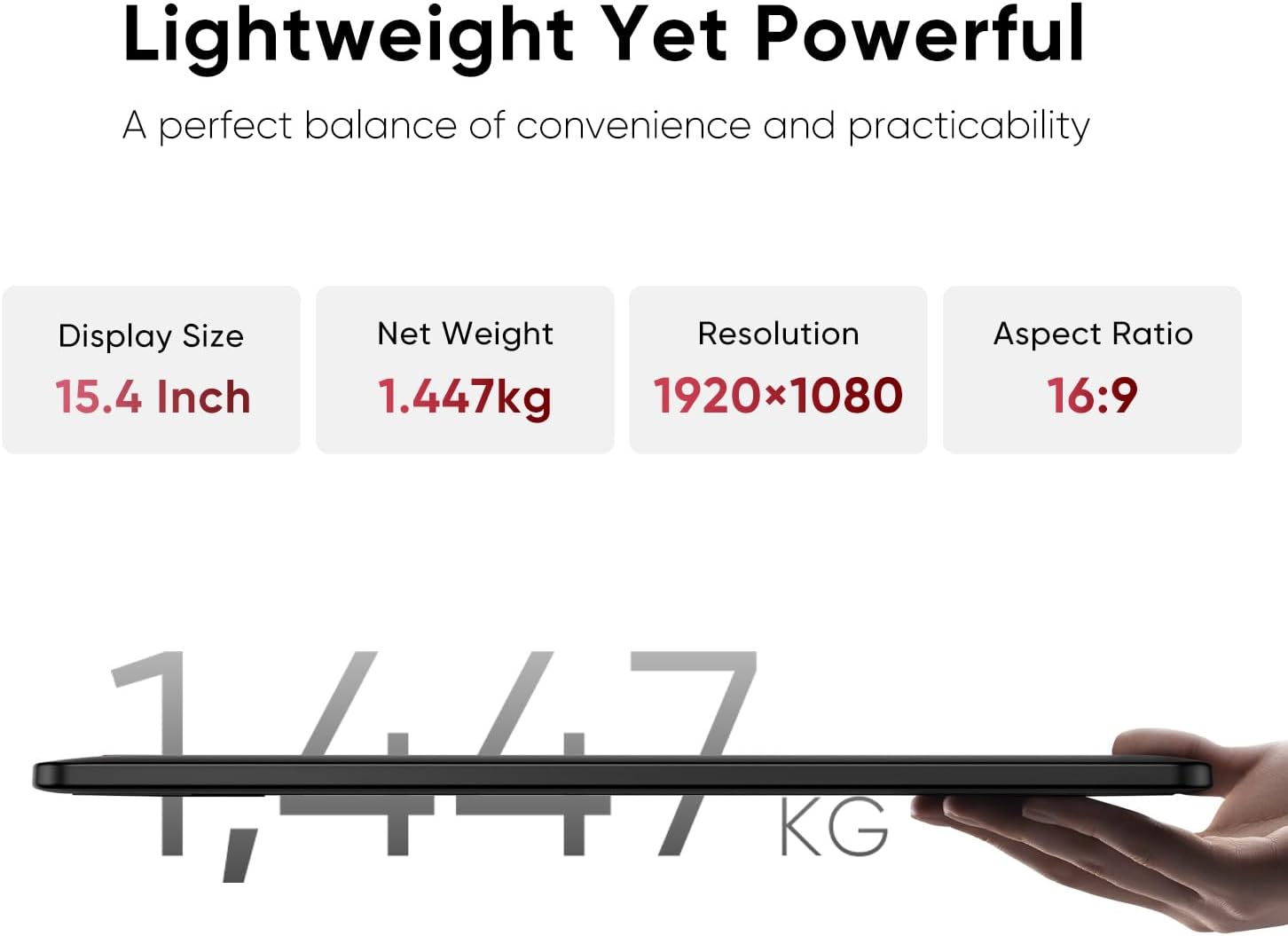
At just 11mm thick, the Artist 15.6 Pro V2 is noticeably slim. It doesn’t feel cheap or flimsy though – the build is solid with a matte-finished housing that resists fingerprints. The overall footprint is manageable for a 15.6-inch display, and it sits comfortably on a standard desk without taking over your entire workspace.
Foldable Stand Included
The included AC41 foldable stand adjusts up to 90 degrees, letting you find your preferred drawing angle. It holds the tablet securely and improves airflow underneath for heat dissipation. During extended sessions (3-4 hours), we noticed the tablet stayed warm but never hot – the stand’s ventilation design helps with that.
Connectivity
Connection is handled through a 3-in-1 cable (HDMI + USB + power). It’s a single cable that splits into three connectors at the computer end. No dongles or adapters needed for most setups. Just plug in and install the driver.
One thing to note: this tablet requires a computer connection. It’s not a standalone device. If you need a tablet that works independently, check our guide to the best Android tablets for drawing.
Full Specifications
| Specification | Details |
|---|---|
| Display Size | 15.6 inches |
| Resolution | 1920 x 1080 (Full HD) |
| Color Gamut | 99% sRGB, 96% Adobe RGB, 96% Display P3 |
| Pressure Levels | 16,384 (16K) |
| Tilt Support | 60 degrees |
| Pen Type | X3 Pro Smart Chip (battery-free) |
| Shortcut Keys | 8 customizable + Red Dial |
| Screen Type | IPS, full-laminated, anti-glare |
| Brightness | 250 cd/m2 |
| Contrast Ratio | 1000:1 |
| Viewing Angle | 178 degrees |
| Thickness | 11mm |
| Connection | 3-in-1 cable (HDMI + USB + Power) |
| Compatibility | Windows 7+, macOS 10.10+, Linux, Chrome OS 88+, Android |
| Price | $289.99 (List: $399.99) |
Pros and Cons
What We Like
- 16K pressure sensitivity – The X3 Pro pen delivers noticeably smoother line variation than 8K pens. Fine detail work and pressure transitions feel natural and precise
- Excellent color accuracy – 99% sRGB and 96% Adobe RGB out of the box means minimal calibration needed for most digital art workflows
- Full-laminated display – Near-zero parallax makes it feel like you’re drawing directly on the canvas, not on glass above it
- Red Dial controller – A genuinely useful feature for brush resizing and zooming that you typically only find on tablets costing $500+
- Wide compatibility – Works with Windows, Mac, Linux, Chrome OS, and Android. Very few competitors support Linux and Chrome OS natively
- Slim and portable – At 11mm thin, it’s easy to transport and doesn’t dominate your desk
- Stand included – The AC41 stand provides solid angles up to 90 degrees, no separate purchase needed
What Could Be Better
- 1080p resolution – At 15.6 inches, Full HD is adequate but you can spot individual pixels if you look closely. A 2K panel would be a welcome upgrade
- 3-in-1 cable – The cable splits into three connectors which can create some desk clutter. A single USB-C connection would be cleaner
- Not standalone – Requires a computer connection. If you want to draw without a PC, you’ll need to look at standalone options
- 250 cd/m2 brightness – Fine for indoor use but not the brightest panel on the market. Not ideal for well-lit rooms
XPPen Artist 15.6 Pro V2 vs. Alternatives
How does this tablet stack up against the competition? Here’s a quick look:
| Feature | XPPen Artist 15.6 Pro V2 | Wacom Cintiq 16 | Huion Kamvas 16 (2021) |
|---|---|---|---|
| Price | $289.99 | ~$649 | ~$249 |
| Pressure Levels | 16,384 | 8,192 | 8,192 |
| Color Gamut | 99% sRGB, 96% Adobe RGB | 96% sRGB | 120% sRGB |
| Shortcut Keys | 8 + Red Dial | None | 8 |
| Full Laminated | Yes | Yes | Yes |
| Stand Included | Yes | Yes (fold-out legs) | Yes |
The Wacom Cintiq 16 is the industry standard, but at more than double the price with half the pressure levels, it’s hard to justify unless you specifically need Wacom’s ecosystem. The Huion Kamvas 16 is slightly cheaper but lacks the Red Dial and the 16K pressure advantage. The XPPen sits right in the middle – better specs than Wacom at a fraction of the cost, and more features than Huion at a modest premium.
Tips for Getting the Most Out of Your XPPen Artist 15.6 Pro V2
- Calibrate the pen first – Run the built-in calibration tool in XPPen’s driver settings. It takes 30 seconds and makes a real difference in cursor accuracy at the screen edges
- Customize the Red Dial per app – Set it to brush size in Photoshop and canvas rotation in Clip Studio. The driver lets you create per-application profiles
- Use the shortcut keys – Map your most-used actions to the 8 keys. Undo/redo and brush/eraser are essentials
- Adjust pressure curves – If lines feel too heavy or too light, tweak the pressure curve in the driver software. Most artists prefer a slightly lighter curve
- Keep a spare nib – The etched glass surface wears nibs faster than smooth glass. XPPen includes replacement nibs in the box, but stock up if you draw daily
- Pair it with a keyboard – Even with 8 shortcut keys, having a compact keyboard nearby for additional shortcuts speeds up your workflow
If you’re new to screen tablets and coming from traditional media, our guide to the best drawing tablets for teenagers covers some great entry points, while this XPPen is perfect when you’re ready to step up.
Our Verdict
The XPPen Artist 15.6 Pro V2 is one of the best mid-range pen displays you can buy right now. The 16K pressure pen is genuinely better than what most competitors offer, the color accuracy is strong enough for professional illustration work, and the Red Dial is a feature you’ll wonder how you lived without.
At $289.99, it undercuts the Wacom Cintiq 16 by more than half while matching or exceeding it on paper specs. The trade-off is Wacom’s slightly more refined driver ecosystem, but XPPen has closed that gap significantly in recent years.
If you’re an intermediate-to-advanced artist looking for your first screen tablet, or upgrading from an older model, this is the one we’d recommend. It delivers where it counts – pen feel, color accuracy, and build quality – without asking you to spend $600+.
Ready to upgrade your digital art setup?
Frequently Asked Questions
Does the XPPen Artist 15.6 Pro V2 work without a computer?
No. This is a pen display, not a standalone tablet. It must be connected to a computer, laptop, or compatible Android device via the included 3-in-1 cable to function.
Is the XPPen Artist 15.6 Pro V2 good for beginners?
Yes, it’s a great option for beginners who want to skip the learning curve of a screenless tablet. Drawing directly on the screen feels more natural. However, if you’re on a tight budget, a cheaper screenless tablet is a more affordable starting point.
How does 16K pressure compare to 8K pressure?
16,384 pressure levels provide finer gradations between light and heavy strokes. You’ll notice the difference most in detailed work like hatching, calligraphy, and subtle shading transitions. For casual drawing, the difference is less pronounced.
Can I use the XPPen Artist 15.6 Pro V2 with Photoshop and Clip Studio Paint?
Yes. It works with all major drawing software including Photoshop, Clip Studio Paint, Krita, Illustrator, Painter, SAI, MediBang, and more. The pressure sensitivity and tilt features work correctly across all tested applications.
Does it work with Mac and Linux?
Yes. The tablet officially supports Windows 7 and above, macOS 10.10 and later, Linux, Chrome OS 88+, and Android. Linux compatibility is a notable advantage over some competitors.
How does the anti-glare screen feel for drawing?
The etched glass provides a slight texture that feels closer to drawing on paper than smooth glass. It reduces pen slipperiness and cuts down on screen reflections. Most artists prefer this over a glossy screen.
Is the included stand adjustable?
Yes. The AC41 foldable stand adjusts from flat to 90 degrees, letting you find your preferred drawing angle. It’s stable enough for firm pen pressure and helps with heat dissipation during long sessions.
What comes in the box?
The package includes the Artist 15.6 Pro V2 tablet, X3 Pro stylus, pen holder with replacement nibs, AC41 foldable stand, 3-in-1 cable (HDMI + USB + power), drawing glove, and a cleaning cloth.
How does this compare to the Huion Kamvas 16?
The XPPen Artist 15.6 Pro V2 offers 16K pressure levels versus the Huion’s 8K, plus the Red Dial controller which the Huion lacks. The Huion is slightly cheaper but gives up meaningful features. Read our Huion tablet review for a detailed comparison.
Does the pen need to be charged?
No. The X3 Pro stylus is battery-free and uses electromagnetic resonance technology. It never needs charging and weighs only about 12 grams.