Affiliate Disclosure: We may earn a commission through the affiliate links below at no extra cost to you. See our full earnings disclaimer.
Drawing on a pen display feels completely different from a screenless tablet. You draw directly on the screen – no hand-eye coordination gap, no learning curve. But with dozens of options from $200 to $2,000+, picking the right one is harder than it should be.
We’ve researched and compared the top pen displays available right now to help you cut through the noise. The best drawing tablet with screen for most artists is the Huion Kamvas 16 (Gen 3) – it delivers a sharp 2.5K display, 16,384 pressure levels, and dual dials for under $460. If you’re on a tighter budget, the Huion Kamvas 13 (Gen 3) gives you the same pen tech in a smaller package for $249. And if you want the absolute best drawing experience money can buy under $800, the Xencelabs Pen Display 16 Lite with its 4K OLED panel is in a class of its own.
Below, we break down our top 9 picks across every price point and screen size – from compact 12-inch budget displays to a massive 22-inch workspace.
Quick Comparison Table
| Pen Display | Category | Price | Resolution | Screen Size |
|---|---|---|---|---|
| Huion Kamvas 16 (Gen 3) | Best Overall | ~$459 | 2.5K QHD | 15.8″ |
| XPPen Artist Pro 16 (Gen 2) | Best for Pros | ~$600 | 2.5K QHD | 16″ |
| Huion Kamvas 13 (Gen 3) | Best Budget | ~$249 | 1920×1080 | 13.3″ |
| XPPen Artist 12 (2nd Gen) | Best Under $200 | ~$200 | 1920×1080 | 11.9″ |
| Wacom Cintiq 16 | Best Wacom | ~$700 | 2.5K QHD | 16″ |
| XPPen Artist 22 Plus | Best Large Screen | ~$470 | 1920×1080 | 21.5″ |
| Huion Kamvas Pro 13 (2.5K) | Best Color Accuracy | ~$399 | 2.5K QHD | 13.3″ |
| Xencelabs Pen Display 16 Lite | Best Premium | ~$749 | 4K OLED | 16″ |
| XPPen Artist 13.3 Pro V2 | Best Portable | ~$300 | 1920×1080 | 13.3″ |
1. Huion Kamvas 16 (Gen 3) – Best Overall Pen Display
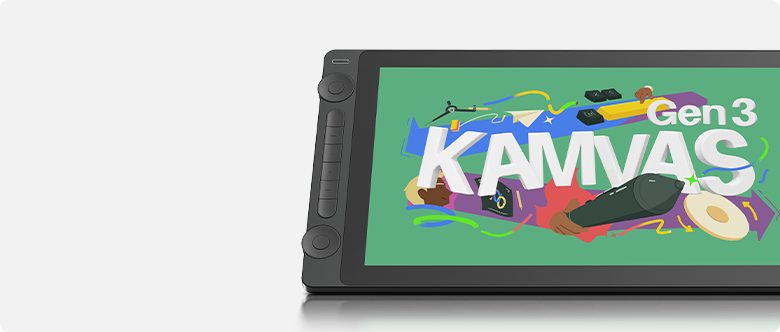
The Huion Kamvas 16 (Gen 3) earns our top spot because it packs the best combination of screen quality, pen performance, and price we’ve seen in a 16-inch pen display. The 2.5K QHD resolution (2560×1440) at 186 PPI means your lines stay crisp whether you’re zoomed in on fine details or working on the full canvas.
Huion’s latest PenTech 4.0 stylus with the HV200 chip delivers 16,384 pressure levels – double what most competitors offer at this price. The cursor tracking is noticeably tighter than the previous generation, with virtually zero lag in apps like Clip Studio Paint and Photoshop. The two customizable dial controllers let you adjust brush size, canvas rotation, and zoom without lifting your pen.
The anti-sparkle glass cuts down on glare without making the screen look grainy, and the 99% sRGB color coverage means what you see on screen is close to what comes out of a printer. At under $460, it undercuts the Wacom Cintiq 16 by nearly $250 while matching or beating it on most specs.
Why We Picked It
2.5K resolution, 16K pressure levels with PenTech 4.0, dual dials, and anti-sparkle glass for under $460. The best value in 16-inch pen displays right now.
Specs: 15.8″ 2.5K QHD (2560×1440) | 186 PPI | PenTech 4.0 stylus | 16,384 pressure levels | 99% sRGB, 90% Adobe RGB | Dual dials + 6 press keys | Anti-sparkle glass | USB-C | Windows/Mac/Android/Linux
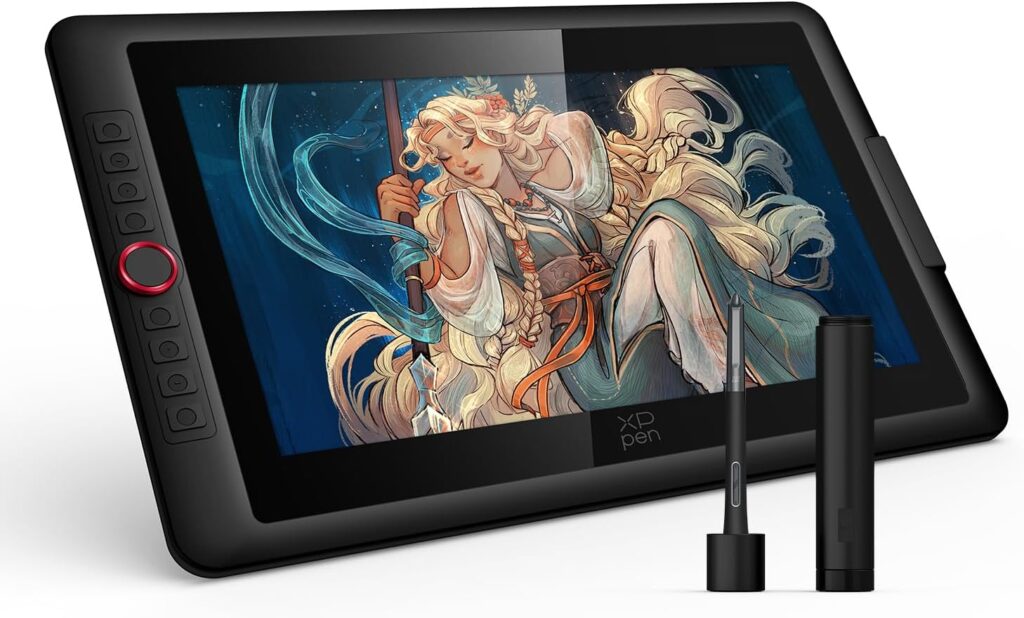
2. XPPen Artist Pro 16 (Gen 2) – Best for Professional Artists
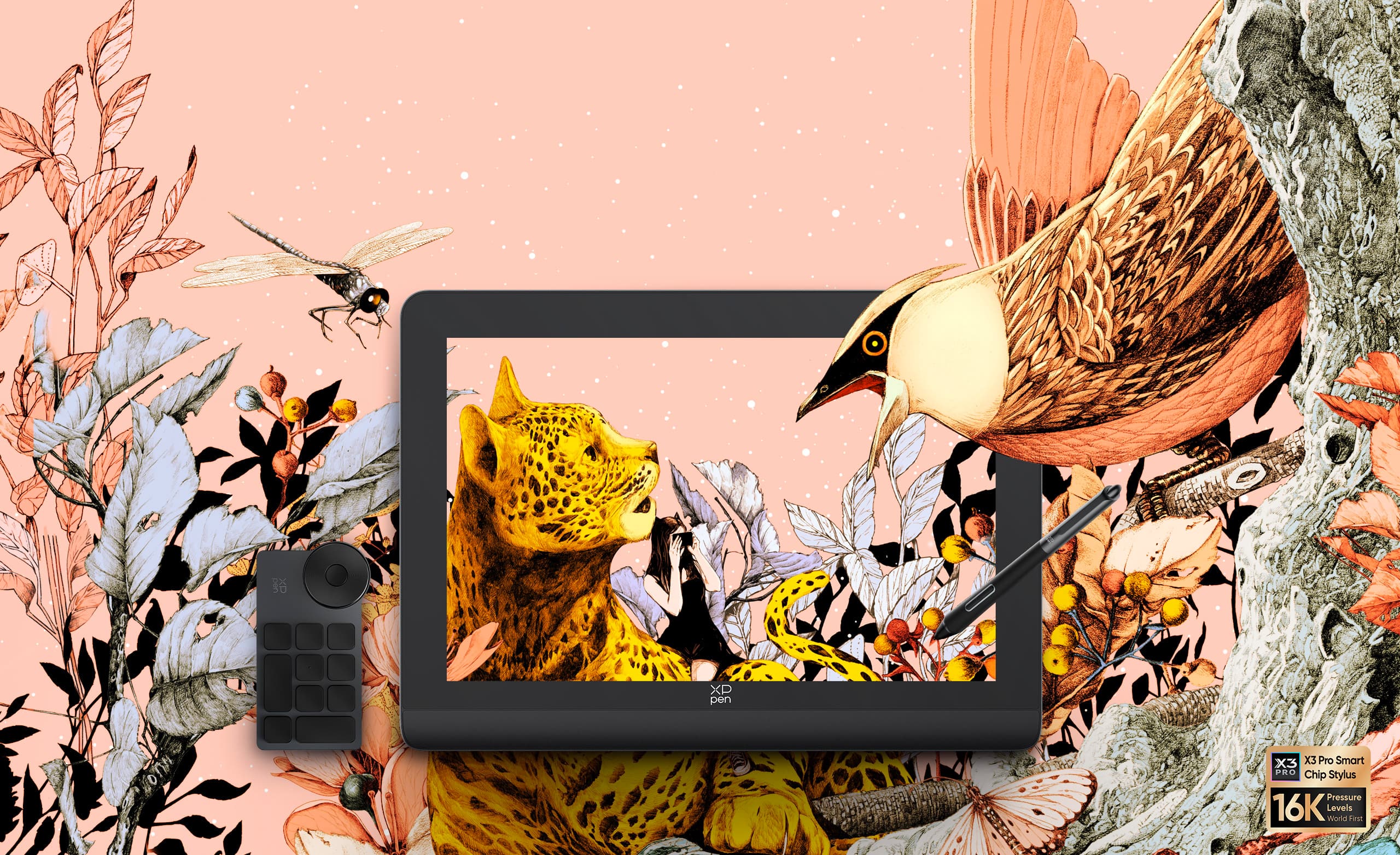
If you need the sharpest pen accuracy and richest colors in a 16-inch display, the XPPen Artist Pro 16 (Gen 2) delivers. The 2560×1600 QHD resolution with 159% sRGB (118% Adobe RGB) color gamut puts it in a different league from most pen displays at this price point. Colors pop without oversaturation, and the 1200:1 contrast ratio gives you deep blacks and clean highlights.
The X3 Pro Smart Chip stylus was the first in the industry to hit 16,384 pressure levels, and the difference shows in fine line work. The initial activation force is just 3 grams – barely touch the screen and it registers. The included Mini Keydial adds physical controls for shortcuts without cluttering your desk, and the 8 customizable buttons on the display itself cover the rest.
At $600, it’s not cheap. But compare that to the Wacom Cintiq Pro 16 at over $1,500 and you’re getting 90% of the experience for a fraction of the cost. If color-critical work like illustration, concept art, or print design is your focus, this is the display to get. We also covered XPPen’s screen tablets in our XPPen Artist 15.6 Pro V2 review if you want to see how their older model compares.
Why We Picked It
159% sRGB color gamut, 2.5K resolution, X3 Pro stylus with 16K pressure, and a Mini Keydial – all for $600. The closest you’ll get to Wacom Cintiq Pro performance without the Wacom price tag.
Specs: 16″ 2.5K QHD (2560×1600) | 159% sRGB, 118% Adobe RGB | X3 Pro stylus | 16,384 pressure levels | 1200:1 contrast | Mini Keydial + 8 keys | Full lamination | USB-C | Windows/Mac/Chrome OS/Android/Linux
3. Huion Kamvas 13 (Gen 3) – Best Budget Pen Display

The Kamvas 13 (Gen 3) proves you don’t need to spend $400+ to get a great pen display. At $249 (or $269 with the included stand), you get Huion’s latest PenTech 4.0 technology with 16,384 pressure levels – the same pen tech found in their $459 Kamvas 16. That alone makes it the best value pen display on the market right now.
The 13.3-inch Full HD screen with anti-sparkle Canvas Glass 2.0 delivers 99% sRGB coverage and comes factory calibrated. The full lamination eliminates the gap between the glass and the display, so your cursor lands exactly where your pen tip touches. The dual dial controllers and 5 silent press keys give you quick access to shortcuts without reaching for your keyboard.
The main trade-off is resolution – at 1920×1080, you won’t get the pixel density of the 2.5K displays higher on this list. But for the price, nothing else comes close. If you’re stepping up from a screenless beginner tablet and want to try drawing directly on screen without a massive investment, start here.
Why We Picked It
PenTech 4.0 with 16K pressure, factory-calibrated 99% sRGB screen, dual dials, and anti-sparkle glass for $249. The cheapest way to get top-tier pen technology in a display tablet.
Specs: 13.3″ Full HD (1920×1080) | PenTech 4.0 stylus | 16,384 pressure levels | 99% sRGB | Dual dials + 5 press keys | Canvas Glass 2.0 | Full lamination | USB-C | Windows/Mac/Android
4. XPPen Artist 12 (2nd Gen) – Best Under $200
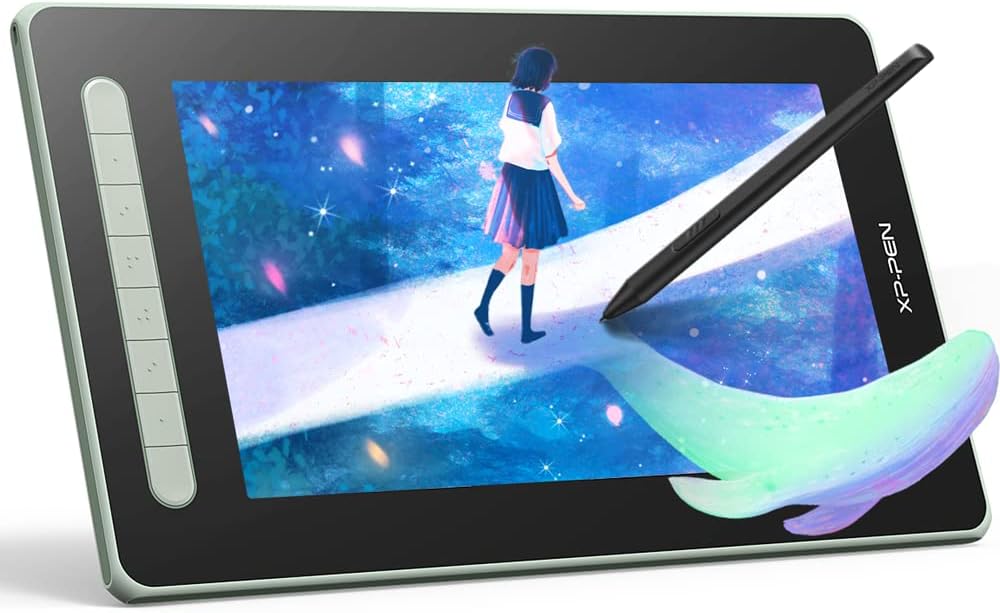
If $200 is your ceiling, the XPPen Artist 12 (2nd Gen) is the pen display to buy. The 11.9-inch screen is compact enough to fit on any desk and light enough to toss in a backpack. At just under 2 pounds, it’s genuinely portable in a way that larger displays aren’t.
The X3 chip stylus offers 8,192 pressure levels and a 3-gram initial activation force. That’s half the pressure sensitivity of the newer X3 Pro models, but honestly, most artists can’t tell the difference between 8K and 16K levels in practice. The fully laminated screen covers 127% sRGB with a 1920×1080 resolution, and the anti-glare coating handles overhead lighting well.
You don’t get dial controllers or a keydial at this price – just 8 shortcut keys on the side of the device. And the smaller 11.9-inch screen can feel tight for detailed work. But if you’re a student, hobbyist, or someone who wants to test whether a pen display is right for them before committing more money, this is the smartest entry point. For even cheaper alternatives, see our best cheap drawing tablets guide.
Why We Picked It
Full-laminated FHD display, X3 stylus, 127% sRGB, and 8 shortcut keys for around $200. The lowest-cost pen display worth buying.
Specs: 11.9″ Full HD (1920×1080) | X3 stylus | 8,192 pressure levels | 127% sRGB, 96% Adobe RGB | 8 shortcut keys | Full lamination | USB-C | Windows/Mac/Chrome OS/Android/Linux
5. Wacom Cintiq 16 – Best Wacom Pen Display
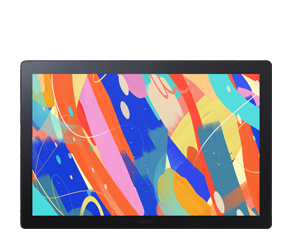
Wacom still makes the gold standard for pen feel, and the updated Cintiq 16 shows why. The Pro Pen 3 has the most natural pressure curve of any stylus we’ve used – transitions from thin to thick lines feel effortless, like real ink on paper. The 2.5K display with anti-glare etched glass delivers sharp details with 99% DCI-P3 color coverage, and the built-in fold-out legs let you adjust the drawing angle without buying a separate stand.
Wacom’s driver ecosystem is the most stable in the industry. While XPPen and Huion have made huge strides, Wacom drivers still have fewer conflicts with creative software, especially Adobe products. If you’ve ever fought with driver issues on a cheaper tablet, the Cintiq’s reliability is worth real money.
The catch is price. At $700, the Cintiq 16 costs 50% more than the Huion Kamvas 16 (Gen 3) while offering half the pressure levels (8,192 vs 16,384) and no dial controllers. You’re paying for Wacom’s pen feel, driver stability, and brand trust. For many professional artists, that premium is justified. For budget-conscious creators, it’s harder to recommend over the competition. Read our full Wacom drawing tablet review for more context on the brand.
Why We Picked It
The best pen feel in the industry, rock-solid drivers, 2.5K display with 99% DCI-P3, and built-in adjustable legs. The Wacom tax is real, but so is the quality.
Specs: 16″ 2.5K QHD | Pro Pen 3 | 8,192 pressure levels | 99% DCI-P3 | Anti-glare etched glass | Built-in fold-out legs | USB-C | Windows/Mac
6. XPPen Artist 22 Plus – Best Large Screen Pen Display
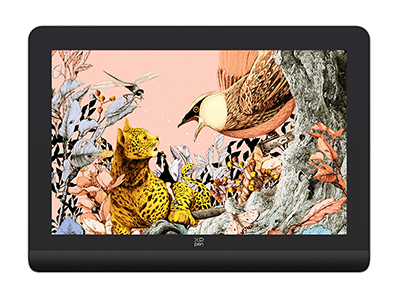
If you want the biggest canvas possible without spending over $500, the XPPen Artist 22 Plus is the obvious choice. The 21.5-inch screen gives you roughly 3x the drawing area of a 13-inch pen display. For detailed illustration, comic art, animation, or anyone who hates zooming in and out constantly, that extra space is transformative.
The X3 Pro stylus delivers 16,384 pressure levels, and the 130% sRGB color gamut (91% Adobe RGB) handles most color work accurately. Full lamination keeps parallax minimal despite the larger screen. The display connects via USB-C or HDMI, and the adjustable stand lets you set it at a comfortable angle.
The downsides are what you’d expect from a big display: it’s not portable, it takes up serious desk space, and the 1920×1080 resolution looks softer on a 21.5-inch screen compared to the same resolution on a 13-inch panel. If pixel density matters to you, the 16-inch 2.5K options higher on this list are sharper. But if raw drawing space is your priority, nothing else under $500 gives you this much room to work.
Why We Picked It
21.5 inches of drawing space with 16K pressure levels and 130% sRGB for under $470. The most screen you can get without breaking the bank.
Specs: 21.5″ Full HD (1920×1080) | X3 Pro stylus | 16,384 pressure levels | 130% sRGB, 91% Adobe RGB | 1000:1 contrast | Full lamination | USB-C + HDMI | Adjustable stand | Windows/Mac/Chrome OS/Android/Linux
7. Huion Kamvas Pro 13 (2.5K) – Best Color Accuracy Under $400
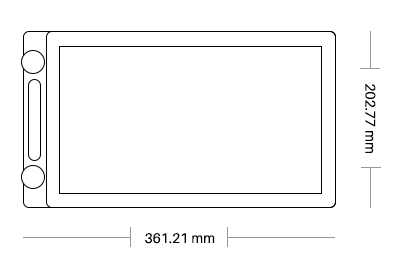
The Kamvas Pro 13 (2.5K) uses quantum dot (QLED) technology to achieve a 145% sRGB color gamut – wider than any other pen display under $400. If your work involves print design, product illustration, or anything where color precision is non-negotiable, this is the display that gets it right.
The 2560×1600 QHD resolution on a 13.3-inch screen gives you a pixel density of 226 PPI – the highest on this list after the Xencelabs. Text is razor sharp, and fine details in your artwork stay crisp at any zoom level. The 1200:1 contrast ratio and 16.7 million colors round out a display that punches well above its price in visual quality.
The pen uses Huion’s older PenTech 3.0 with 8,192 pressure levels rather than the newer 4.0. That’s still plenty for most artists, but if cutting-edge pen tech matters to you, the Kamvas 13 Gen 3 or Kamvas 16 Gen 3 with PenTech 4.0 are better picks. The trade-off here is clear: best-in-class screen quality with slightly older pen technology. For color work, we’d make that trade every time. Check our Huion drawing tablet review for a broader look at the brand.
Why We Picked It
QLED panel with 145% sRGB, 2.5K resolution at 226 PPI, and 1200:1 contrast for $399. The most color-accurate pen display under $400.
Specs: 13.3″ 2.5K QHD (2560×1600) | 226 PPI | PenTech 3.0 stylus | 8,192 pressure levels | 145% sRGB, 109% Adobe RGB | QLED | 1200:1 contrast | 7 press keys | Full lamination | USB-C | Windows/Mac/Android
8. Xencelabs Pen Display 16 Lite – Best Premium Pen Display
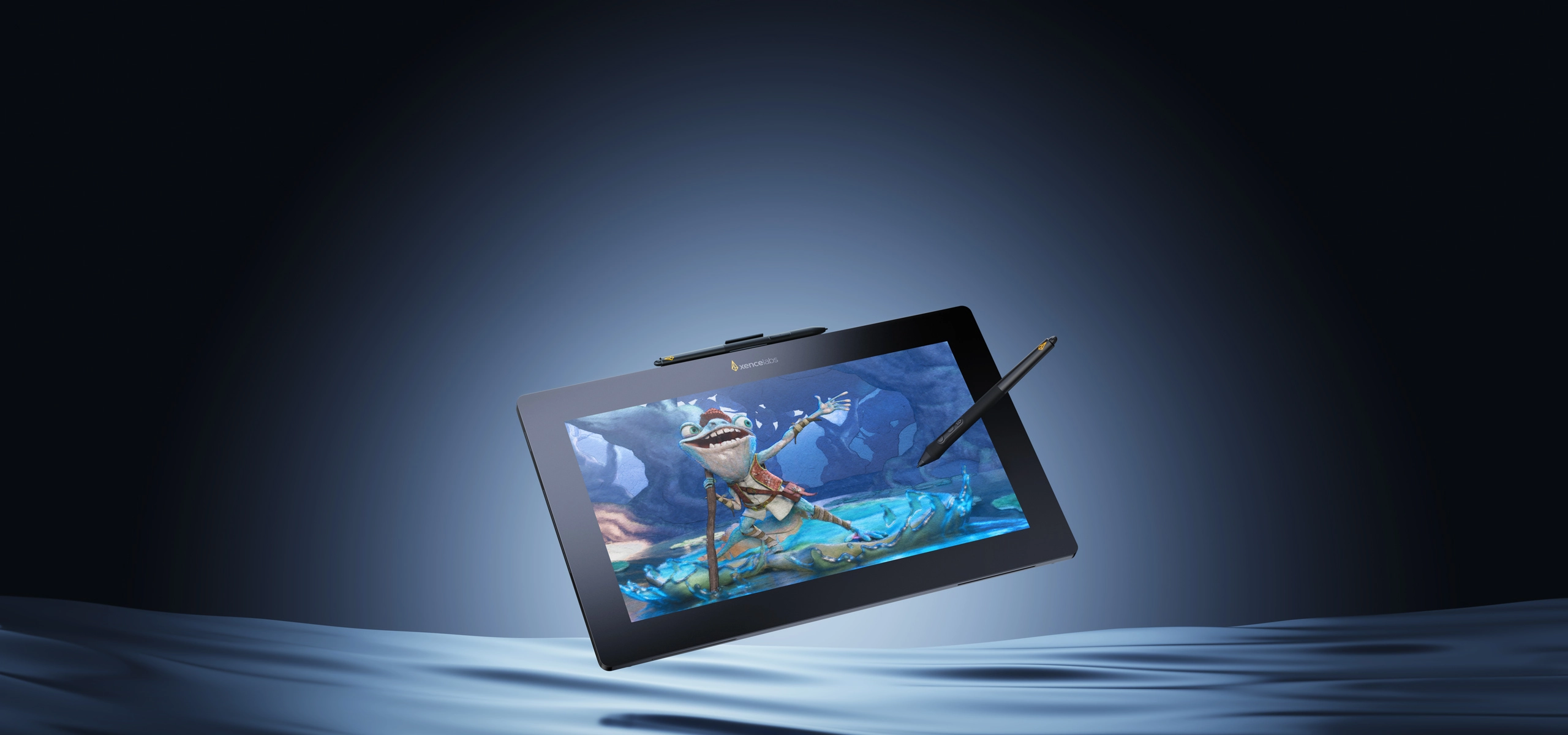
The Xencelabs Pen Display 16 Lite is what happens when a company full of ex-Wacom engineers builds the pen display they actually wanted to make. The 16-inch 4K OLED screen covers 98% Adobe RGB and 98% P3-D65, producing the most accurate colors and deepest blacks of any pen display on this list. OLED means each pixel produces its own light – blacks are truly black, not dark gray.
The device weighs just 2.67 pounds and measures 12mm thin, making it genuinely portable despite the 16-inch screen. It ships with two battery-free pens – a 3 Button Pen and a Thin Pen – each with customizable settings per application. The initial activation force drops as low as 3 grams, giving you whisper-light control for detailed work.
At $749, it costs more than everything else on this list except the Wacom Cintiq 16. But a 4K OLED display with factory-calibrated color profiles and two premium pens is a package nobody else offers at this price. For professional illustrators, colorists, and concept artists who need the absolute best screen quality in a portable format, this is it. If you don’t need a computer at all, consider a standalone drawing tablet instead.
Why We Picked It
4K OLED with 98% Adobe RGB, two included pens, 12mm thin, and factory-calibrated color profiles for $749. The best screen in a pen display under $1,000.
Specs: 16″ 4K OLED (3840×2400) | 98% Adobe RGB, 98% P3-D65, 99% sRGB | Two battery-free pens | 3g activation force | 12mm thin, 2.67 lbs | Factory-calibrated | USB-C | Windows/Mac/Linux
9. XPPen Artist 13.3 Pro V2 – Best Portable Pen Display

The Artist 13.3 Pro V2 is XPPen’s most travel-friendly pen display. At 12.9mm thin and 1.1kg (2.4 lbs), it slips into a laptop bag without adding bulk. The 13.3-inch screen with 99% sRGB and 95% DCI-P3 color coverage delivers accurate colors for on-the-go work, and the full lamination keeps parallax tight.
What sets this apart from the cheaper Artist 12 (2nd Gen) is the X3 Pro stylus with 16,384 pressure levels and the included Red Dial – a physical shortcut wheel that sits on your desk and gives you tactile control over brush size, zoom, and canvas rotation. The 8 customizable shortcut keys on the display round out the controls. It’s the full desktop experience packed into a portable size.
The 1920×1080 resolution is the same as the Artist 12, but stretched across a slightly larger 13.3-inch screen. At around $300, it sits in a competitive middle ground – more expensive than the Kamvas 13 Gen 3 ($249) but with a better stylus and the Red Dial accessory. If portability and pen performance matter more than screen resolution, this is a strong pick. Pair it with an Android tablet for drawing when you need a fully wireless setup.
Why We Picked It
X3 Pro stylus with 16K pressure, Red Dial controller, 95% DCI-P3 colors, and just 1.1kg total weight for around $300. The most capable portable pen display at its price.
Specs: 13.3″ Full HD (1920×1080) | X3 Pro stylus | 16,384 pressure levels | 99% sRGB, 95% DCI-P3 | Red Dial + 8 keys | 12.9mm thin, 1.1kg | Full lamination | USB-C | Windows/Mac/Chrome OS/Android/Linux
How We Chose These Pen Displays
We evaluated each pen display based on five criteria that matter most for digital artists:
- Screen quality – Resolution, color accuracy (sRGB/Adobe RGB coverage), contrast ratio, and lamination. A pen display lives or dies by its screen.
- Pen performance – Pressure sensitivity, initial activation force, cursor accuracy, tilt support, and lag. The pen is the other half of the experience.
- Value for money – Specs relative to price. A $250 display with 16K pressure and 99% sRGB beats a $700 display with 8K pressure and 100% sRGB.
- Build quality and ergonomics – Weight, thickness, stand quality, shortcut keys, and how comfortable it is during long sessions.
- Compatibility – Works with major operating systems and creative software. Bonus points for Android and Chrome OS support.
What Screen Size Do You Need?
Screen size is the single biggest decision when buying a pen display. Here’s how each size range works in practice:
12-13 inches – Best for portability, tight desk space, and artists who frequently travel. You’ll zoom in more often for detail work, but the compact size means it doubles as a second screen without dominating your setup. Great for students and hobbyists.
15-16 inches – The sweet spot for most artists. Enough room for comfortable full-canvas work without the bulk and desk footprint of a 20+ inch display. This is where the best performance-per-dollar lives, and it’s what we recommend for most people.
20+ inches – Best for animation, detailed illustration, comic art, and anyone who wants to minimize zooming. The trade-off is desk space, weight, portability, and often resolution (FHD looks softer on larger panels). If you have the space and budget, a large display is genuinely more productive.
When in doubt, go 16 inches. Both the Huion Kamvas 16 (Gen 3) and XPPen Artist Pro 16 (Gen 2) hit the sweet spot of size, resolution, and price.
Resolution Matters More Than You Think
On a screenless drawing tablet, resolution doesn’t exist – the display is your monitor. But on a pen display, you’re staring at the screen from 18 inches away. At that distance, pixel density makes a visible difference.
1920×1080 (Full HD) – Fine on 13-inch screens (about 165 PPI). Gets noticeably soft on 16-inch panels (138 PPI) and looks genuinely fuzzy on 22-inch displays (102 PPI). Acceptable for drawing, but text and thin lines show pixelation.
2560×1440/1600 (2.5K QHD) – The current sweet spot. On a 16-inch screen, you get 186+ PPI, which means sharp lines, clean text, and no visible pixels at normal viewing distance. This is what we recommend if your budget allows it.
3840×2400 (4K) – Currently only available on premium models like the Xencelabs Pen Display 16 Lite. Looks stunning, but your GPU works harder and the price jumps significantly. Worth it for professionals who need pixel-perfect accuracy.
Pen Display vs. Standalone Tablet – Which Is Better?
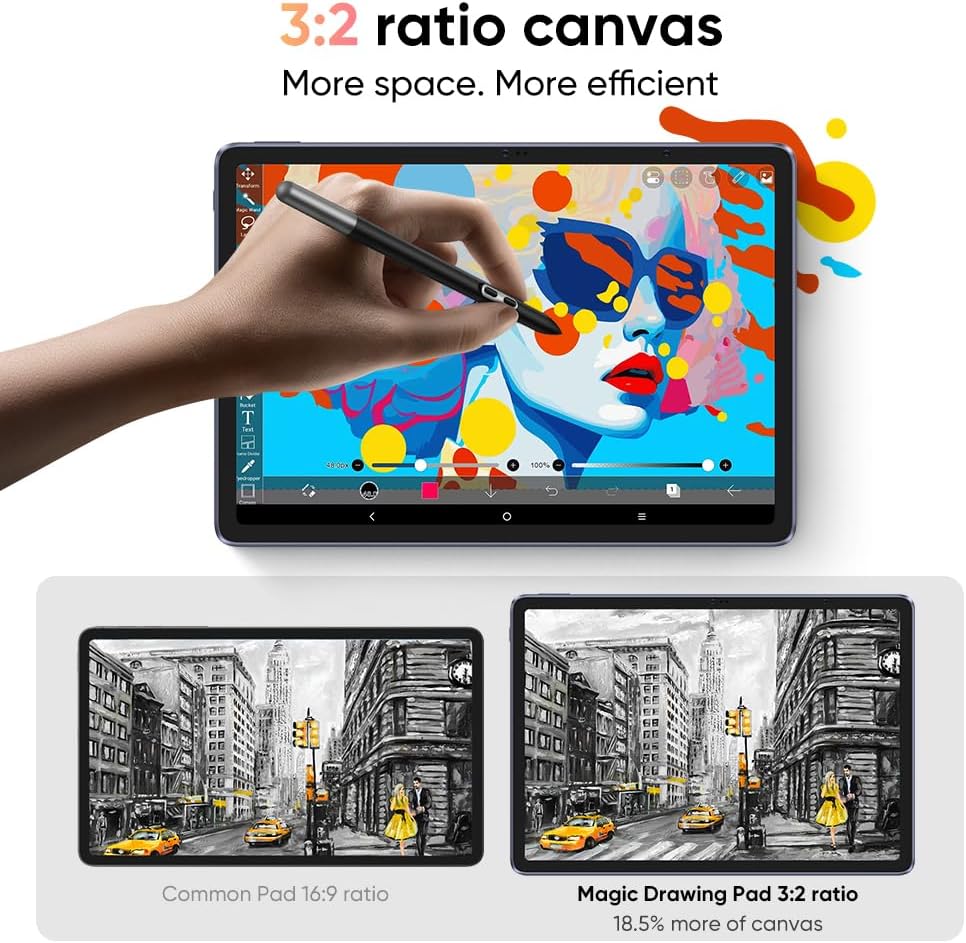
A pen display needs a computer to work. You plug it in via USB-C, and it acts as both a screen and an input device. A standalone tablet like the XPPen Magic Drawing Pad or an iPad runs its own operating system and works independently.
Choose a pen display if: You already have a powerful computer, you use desktop software (Photoshop, Clip Studio Paint, Blender), and you want the best drawing experience per dollar. Pen displays give you access to the full desktop creative software ecosystem.
Choose a standalone tablet if: You need to draw anywhere without a computer, you prefer a wireless setup, or you’re primarily a hobbyist who doesn’t need desktop-grade software. See our best standalone drawing tablets guide for top picks.
Frequently Asked Questions
Do I need a powerful computer for a pen display?
Most pen displays work fine with any modern computer. The display itself doesn’t require GPU power – it just mirrors your screen. However, the creative software you run does need decent specs. For Photoshop and Clip Studio Paint, 8GB RAM and a dedicated GPU from the last 5 years is plenty. For 3D sculpting in Blender or ZBrush, you’ll want 16GB+ RAM and a stronger GPU.
Is a pen display better than an iPad for drawing?
It depends on your workflow. An iPad is portable and has Procreate – one of the best drawing apps ever made. But a pen display gives you access to the full desktop versions of Photoshop, Clip Studio Paint, and every other professional tool. Most professional artists use a pen display at their desk and an iPad on the go. If you can only pick one and you have a computer, a pen display gives you more software options for less money.
How long do pen displays last?
A quality pen display lasts 5-10 years. The screen and electronics rarely fail. What wears out is the pen nib (replaceable for $5-10) and occasionally the USB-C cable. Keep the screen clean with a microfiber cloth and avoid pressing too hard, and your display will outlast several computers.
Can I use a pen display as a regular monitor?
Yes. Most pen displays function as a standard external monitor when you’re not drawing. The resolution and color accuracy make them decent for photo editing, video work, and general productivity. Some artists keep their pen display as a secondary screen full-time.
Do pen displays have input lag?
Modern pen displays from Huion, XPPen, Wacom, and Xencelabs have minimal lag – typically under 20ms. You won’t notice it during normal drawing. Lag is more noticeable in resource-heavy software with large canvas sizes, but that’s a software/CPU limitation, not a pen display issue.
What’s the difference between laminated and non-laminated screens?
Full lamination bonds the glass directly to the display panel, eliminating the air gap between them. This means your cursor appears exactly where your pen tip touches – no offset or parallax. Non-laminated screens have a visible gap that creates a slight disconnect between pen tip and cursor. Every display on this list is fully laminated, and we don’t recommend buying a non-laminated pen display in 2026.
Which brand has the best pen technology?
In 2026, Huion’s PenTech 4.0 and XPPen’s X3 Pro are the leaders in specs – both offer 16,384 pressure levels with ultra-low activation force. Wacom’s Pro Pen 3 technically has fewer pressure levels (8,192) but arguably the most natural drawing feel thanks to decades of pen technology refinement. For most artists, any of these three technologies will perform excellently. The differences are more about personal preference than objective quality.
Do I need tilt support?
Tilt support lets the pen display detect when you angle your stylus, which enables natural shading effects in supported software. All modern pen displays include tilt support (usually 60 degrees). It’s most useful for painting and shading – less important for line art, vector work, or photo editing. It’s a nice-to-have feature that comes standard, not something you need to specifically shop for.
Which Drawing Tablet with Screen Is Right For You?
Here’s the quick decision guide based on your situation:
Best for most artists: Huion Kamvas 16 (Gen 3) – 2.5K, 16K pressure, $459
Best on a budget: Huion Kamvas 13 (Gen 3) – same pen tech, $249
Best for color work: Huion Kamvas Pro 13 (2.5K) – QLED, 145% sRGB, $399
Best screen quality: Xencelabs Pen Display 16 Lite – 4K OLED, $749
Best for professionals: XPPen Artist Pro 16 (Gen 2) – 159% sRGB, $600
Best large workspace: XPPen Artist 22 Plus – 21.5 inches, $470
Best Wacom: Wacom Cintiq 16 – unmatched pen feel, $700
Best cheap entry point: XPPen Artist 12 (2nd Gen) – solid starter, $200
If you’re still unsure whether you even need a screen, check our best drawing tablets for beginners guide – we cover screenless options there that cost a fraction of the price and still deliver great results.
No matter which pen display you choose from this list, you’re getting a capable tool that can produce professional-quality art. The biggest factor in your artwork isn’t the tablet – it’s the hours you put in practicing. Pick the one that fits your budget, plug it in, and start drawing.